Global Local
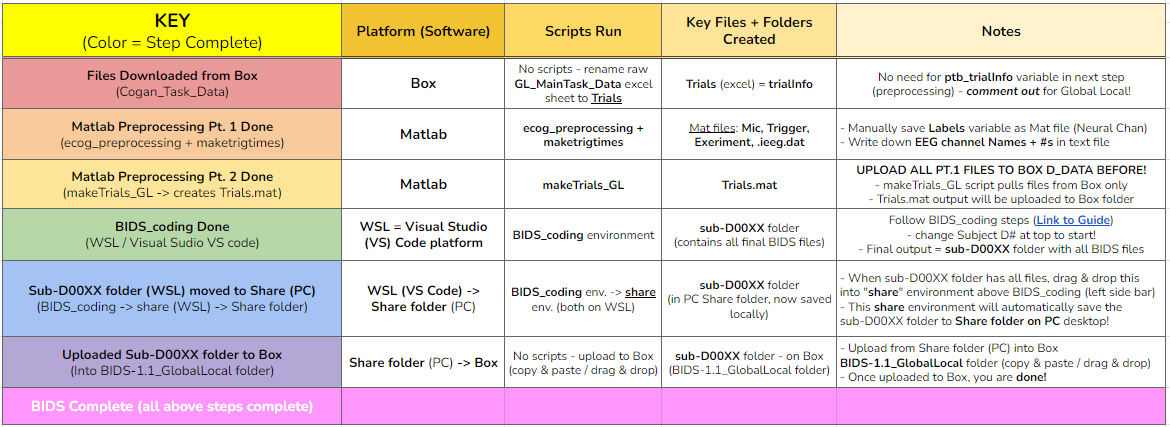
ecog_preprocessing (Mat) → makeTrials_GL (Mat) → BIDS_coding (WSL)
Step 1: Download data files (Box)
Go to Box → ECoG_Task_Data → Cogan_Task_Data and locate the Subject (D#) folder → Global Local task folder → All blocks subfolder
Download all Box data files from “All Blocks” folder
Then Copy + Paste files into Local PC folder in CoganLabNL → InUnit Preprocessing → Subject (D#) → Global Local → All blocks
KEY: locate the Excel csv file titled:
GL_MainTask_Data_D#_taskdateRENAME this file to
TrialsEDF file: 2 options - Download (local PC) or Box Drive (no download)
Download : from TaskUploadDir Box → TaskUploadDir → Download → move to same local PC Global Local folder (Only if you want to download!)
Box Drive : No download, will use Box Drive path in
edf_filenamevariable instead of local PC path → See Step 2!
Step 2: ecog_preprocessing(Matlab)
general preprocessing script
Once your files are downloaded and Trials is renamed, open Matlab and run the ecog_preprocessing script (used for all tasks preprocessing)
Start the same as all other tasks → create a new
Casefor the task (Global Local = 009 )Fill in all of the case variable information accordingly: see differences!
KEY 1 - for Global Local only, the
ptb_trialInfois commented out! → put a%(percentage sign) in front! This is because we do not need to get trialInfo – it is replaced by the Trials excel sheet we renamed in Step 1.KEY 2 -
edf_filenamevariable (path) will change depending on if you downloaded the EDF above from Box, or if you are uploading it directly from Box Drive:Downloaded EDF path to InUnit Preprocessing (PC):
C:\Users\ncl24\Desktop\CoganLabNL\InUnit Preprocessing\D81\Lexical Delay\D# DATE COGAN_TASKNAME.EDFBox Drive EDF path to TaskUploadDir (Box):
C:\Users\ncl24\Box\CoganLab\ECoG_Task_Data\TaskUploadDir\D# DATE COGAN_TASKNAME.EDF
Once all variables are filled out, highlight + run (F9) to load into your workspace
Ignore the trialInfo section (don’t need trialInfo) → Go straight to the edfread + labels section & run!
This will read the EDF file to create your
labelsvariableThen, run the following extract trigger + mic channel section
This will create your
trigger&micvariables, as well as save them astrigger.mat&mic.matfiles in your task folder.Finally, run the .ieeg.dat + experiment file section, that will save the
experiment.mat&.ieeg.datfiles in your task folderAs well as create the folders mat & taskdate (e.g.**230807*)*
Move the experiment file into the mat folder
At the end of Step 5, the Trials.mat file will automatically save under the taskdate (230807) → mat folder on Box!
Step 3: MaketrigTimes (Matlab)
trigTimes + trigTimes_audioAligned files
When you reach the maketrigtimes section, you will open the
maketrigtimes.mscript and run it in a separate window next to ecog_preprocessing.In order to run maketrigtimes successfully, you will need to have:
The trigger variable already loaded in your workspace
Should already be there if going straight from running ecog_preprocessing – but if not, double-click on trigger saved in folder
Already run
edfread_fastIf not, go back and run this in ecog_preprocessing & make sure that your
edf_filenamevariable (path to EDF) from the case variables is loaded in your workspace before doing so.
Run the first section at the top to load the graph of the triggers
Uncomment the -triggers (negative) linefor Global Local!
Otherwise the graph will appear upside down
Then, proceed as usual and make the trigTimes adjustments you do for all other tasks
Global Local-specific Task Info :
Total # triggers → trigTimes = 448
4 blocks total, 112 triggers per block
Rare cases could have 512 total trigs, 128 per block
Seconds between triggers = 1.5
Threshold (thresh) = -1.25
Bc graph is inverted / negative from the -triggers line!
If you need to delete excess triggers (first, last, random in middle) run:
trigTimes([1,2,3,etc.]) = []Fill in brackets with which specific trigger numbers you need to delete!
Once
trigTimes = 448, run the final section to savetrigTimes.matfile to your PC folder!
Finally, return to the ecog_preprocessing script tab and run the section below, to align the audio to your saved trigTimes
This will create the
trigTimes_audioAligned.matfile and save it into your PC folder
Step 4: Upload Files + Copy EDF to Box D_Data
Before moving on! → Upload all files to Box → D_Data from InUnit Preprocessing folder: Box → D_Data → Global Local → Subject (D#)
Critical because the makeTrials_GL script pulls and uses files from Box only! (D_Data Global Local folder specifically)
So before running that script, all files must be uploaded there in order for it to work
Upload the files to D_Data in the exact same way as all other tasks! - only difference = Trials.csv instead of trialInfo
Also! → Copy EDF file into D_Data folder from TaskUploadDir
The edfread command in this program can only read EDFs / files from the D_Data folder!!!
So you must Copy the EDF from TaskUploadDir into the D_Data folder with the rest of the uploaded files!
SEE BELOW - you must also change Path to EDF!!!
Of
edf_filenamevariable +edfread_fast(edf_filename)commands!
Step 5: makeTrials_GL (Matlab)
Global Local only script to make Trials.mat
Once all files have been uploaded to Box → D_Data folder, return to Matlab and run the
makeTrials_GL.mscript in another separate tab window → this script will output the finalTrials.matfile when finished!STEPS TO RUN SUCCESSFULLY (also written on script!)
Step 1 : Copy EDF file into D_Data Box folder! (from TaskUploadDir)
KEY - Make sure EDF file is copied into the D_Data Subject Global Local folder on Box!
Step 2: Edit info (specific to each subject) + copy in command line to run each command below (A, B, C) ONE AT A TIME:
- 2A) Command 1: change edf_filename variable
edf_filename = ‘C:\Users\ncl24\Box\CoganLab\D_Data\GlobalLocal\D103\240110 COGAN_GLOBALLOCAL.EDF’;
- 2B) Command 2: change h variable
h = edfread_fast(‘C:\Users\ncl24\Box\CoganLab\D_Data\GlobalLocal\D103\240110 COGAN_GLOBALLOCAL.EDF’);
- 2C) Command 3: run makeTrials_GL function
makeTrials_GL(‘D103’, ‘240110’)Must replace: (‘subject’, ‘taskdate’)
Replace
subjectwith‘D#’Replace
datewith‘taskdate’(e.g.‘230807’)
Final format:
makeTrials_GL(‘D#’, ‘taskdate’)Example : D94
subject = ‘D94’date = ‘230807’makeTrials_GL(‘D94’, ‘230807’)
You MUST add the single ‘quotations’ around each of the real variables that you enter, in order for them to be registered as the values for those variables!
Once 2C is finished running, you are done!
Final output = Trials.mat (when 2C is done ^)
Trials.mat file will automatically save under the taskdate (e.g. 230807) → matfolder on Box
Example path to locate Trials.mat file:
Box -> CoganLab -> D_Data -> GlobalLocal -> D103 (subj) -> 240110(taskdate) -> mat -> Trials.mat
If you would like to save it in your local PC folder (InUnit Preprocessing) as well, you can download the file from Box and copy it there! – you don’t have to though.
Step 6: BIDS_coding (WSL → Visual Studio (VS) Code program)
BIDS
Open WSL
Open
BIDS_codingworkspace (folder from Desktop)File (top left) → Open Folder → Desktop → BIDS_coding
Make sure it opens into BIDS_convert_wsl.sh script!
BIDS_coding → BIDS_converter → BIDS_convert_wsl.sh
C:/Users/ncl24/BIDS_coding/BIDS_converter/BIDS_convert_wsl.sh
In “Terminal” (command window at bottom), type
git pullMake sure you are in the right workspace, should look like this:

Press Enter
If you encounter an error message!
Message:

You will need to make sure all of your changes to ALL scripts in the workspace (modified files will have an “M” next to them in explorer left side bar) have been COMMITTED to Github before running the next line, because they will be ERASED!!!
To commit changes to github: type
git push→git commit
If your only changes are the variables of subject, task, etc. that you make for specific subjects, then you don’t have to commit them – BUT , make sure any files you have run for previous subjects with the script are SAVED TO BOX BEFORE RUNNING the next command, because they will be overwritten!!!
To Save to Box:
Drag sub-D00XX folder into share folder above Workspace in WSL explorer → should be in Share folder on Desktop, then copy into Box → BIDS-1.1_GlobalLocal folder
Once all previous subject files have been saved to Box BIDS Global Local folder, you will reset the script!
Type
git reset --hard+ Enter!- Should look like this when idone:

When git reset is done, re-type git pull + Enter!
KEY – Edits to make to Script after Reset :
Editing BIDS_convert_wsl.sh script!
EDITS : CRITICAL TO CHANGE THESE IN SCRIPT BEFORE RUNNING!
Line 4 : Change task to → TASKS=(“GlobalLocal”)
Must change from “SentenceRep” default to GlobalLocal (or any task going forward)
Use the exact same name as the D_Data folder!
Final :

Line 16 : Comment out (#) whole mapfile line!
Don’t need for Global Local (will cause error)
Final : see full line on script

Line 17 : Change SUB_IDS=(D#) D# to correct Subject D#’s!
Can run multiple subjects at once , or just one
If running multiple, separate by spaces only! No comma! → see example below:
Final :

Line 35 : Comment out (#) the whole line 35!
Global Local doesn’t have task stimuli, so don’t need this line and it will cause an error if you keep it!
Final : see full line on script

- Only comment this out for Global Local or tasks that don’t have
task stimuli!
- For other future tasks that do, change the
“sentence_rep”task name in the middle of the command line (35) and insert the correct task name to use proper task stimuli!
- For other future tasks that do, change the
CTRL + S TO SAVE ALL EDITS TO SCRIPT!!!
When all edits have been made to script & saved ( ctrl + s ), type
conda activate BIDS_coding+ Enter!The conda activate command will change (base) at the start of the command path to (BIDS_coding)
Once the new command line pops up below:
Type
cd BIDS_converter+ Enter!
within BIDS_coding (adds it to end of path), which is where you can now run the script to perform the BIDS conversion functions
Once the next command line pops up below with /BIDS_converter at the end: type
./BIDS_convert_wsl.sh+ Enter!
STEPS 8, 9, 10 SHOULD LOOK LIKE THIS : (in order top → bottom!)

The script should then run for a few minutes (10-15 min) after entering the last command to create all of the converted BIDS files!
Final output will be on the left side bar (WSL Explorer)
To open explorer: click double paper icon at top left corner
Under ncl24 → Workspace → GlobalLocal → BIDS
Locate the sub-D0XXX folder!
i.e. sub-D0100 for Subject D100
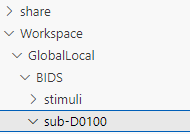
This is where all of the finalized BIDS files will go!
Last step: move to share folder (on WSL)
When it is finished creating BIDS files, in the left side bar with workspaces, drag and drop this sub-D00XX output folder containing the BIDS files into the ” share” folder above Workspace! (see top of pic above) 1. Then you will be able to access it from Share PC folder on Desktop! → if not moved to share, can’t access on Windows
Final Step: Upload sub-D00XX on Share folder to Box BIDS-1.1_GlobalLocal
Copy sub-D00XX with all finalized BIDS file outputs from Share PCfolder into Box → CoganLab → BIDS-1.1_GlobalLocal → BIDS folder!